Swarovski DAM - Cloudinary Assets - Quick Start Guide V1.0

This guide will help you get started with the essentials: from logging in to searching, downloading, sharing and managing your digital assets.

Disclaimer: This guide was put together thoroughly to assist internal users, but mistakes may be included. For the most up-to-date details, please consult the Official Cloudinary User Guide.

How to Log In

  1. 1 If you are an internal user using a @swarovski.com or @external.swarovski.com email address, use the Single Sign On login page at https://cloudinary.com/users/sso_login
  2. 2 If you are an external user, follow the instructions received in the welcome email from Cloudinary. Login for external users can be accessed at this address: https://cloudinary.com/users/login
  3. ! Once logged in, you'll see the Media Library interface where you can access all our digital assets.

Pro Tips

  • Bookmark it: Save the login URL for quick access.
  • Single Sign On (SSO): SSO is only available to internal users.
  • Product Environments: Some organizations have multiple environments (production, staging, etc.). Make sure you select the correct one.

Key Terminology

Before navigating the library, it is helpful to understand the specific terms used in the Cloudinary interface.

Cloudinary Assets
Our central Digital Asset Management system. Internally, you may also hear it referred to as Swarovski DAM or Swarovski MAM (Media Asset Management)—they all refer to this platform.
Asset
Any digital file stored in the system. This includes images, videos, PDFs, ZIP files and many more.
Public ID
The unique identifier of an asset in Cloudinary Assets. Think of it as the system's internal filename.
Public URL
The direct web address used to access an asset online. It contains the Public ID. Because we use dynamic folders, this URL remains unchanged even if you move the asset to a different folder.
Folder
The location where assets are organized.
Collection
A virtual album used to group assets specifically for sharing.
Assets can exist in multiple collections without duplicating the actual file.
Metadata
Structured fields (like Description, SKU or Expiration Date) attached to an asset, used for organization and finding assets.
Tags
Tags are simple, user-defined labels you attach to assets to organize, filter, and search your media. Used to build dynamic collections, power automations and enable quick asset discovery.
Transformation
A version of an asset that is resized, cropped, or reformatted on the fly. Formerly known as "Download formats".

How to Download Assets

Use the Cloudinary Assets Media Library to download original files or bundles of assets directly from the browser.

Download a single asset

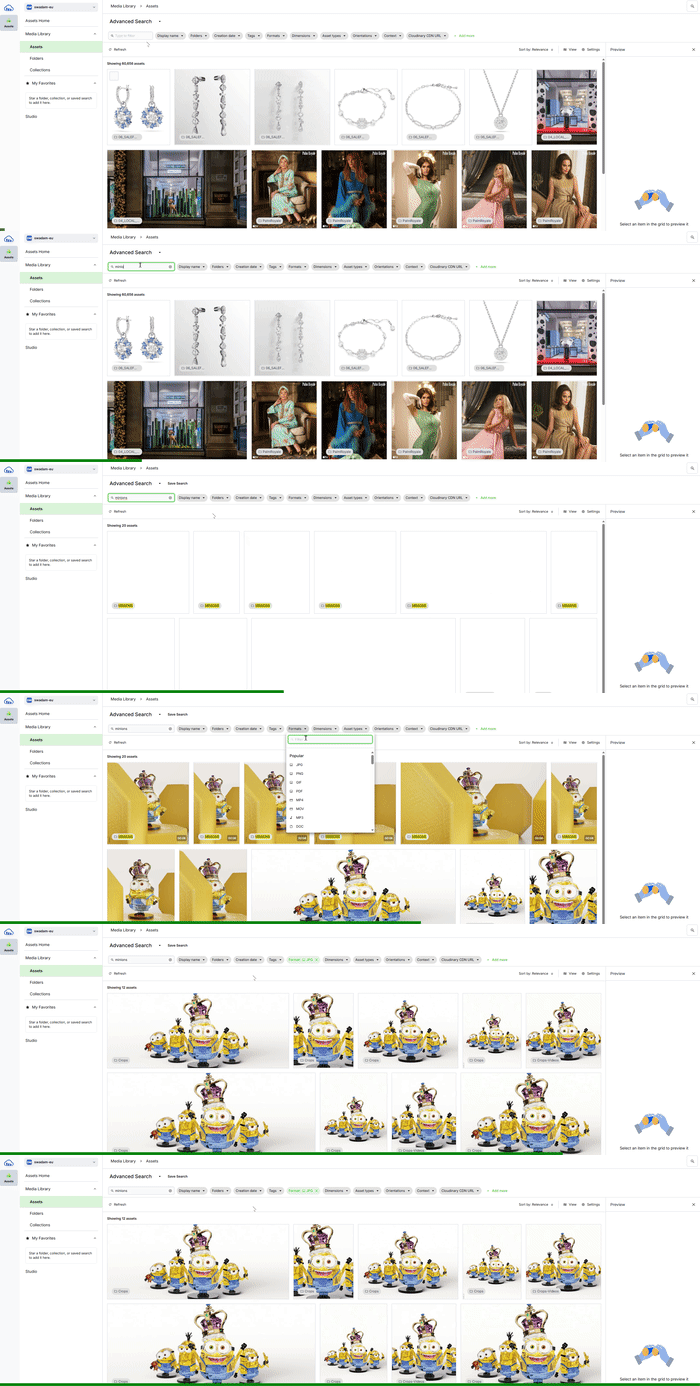
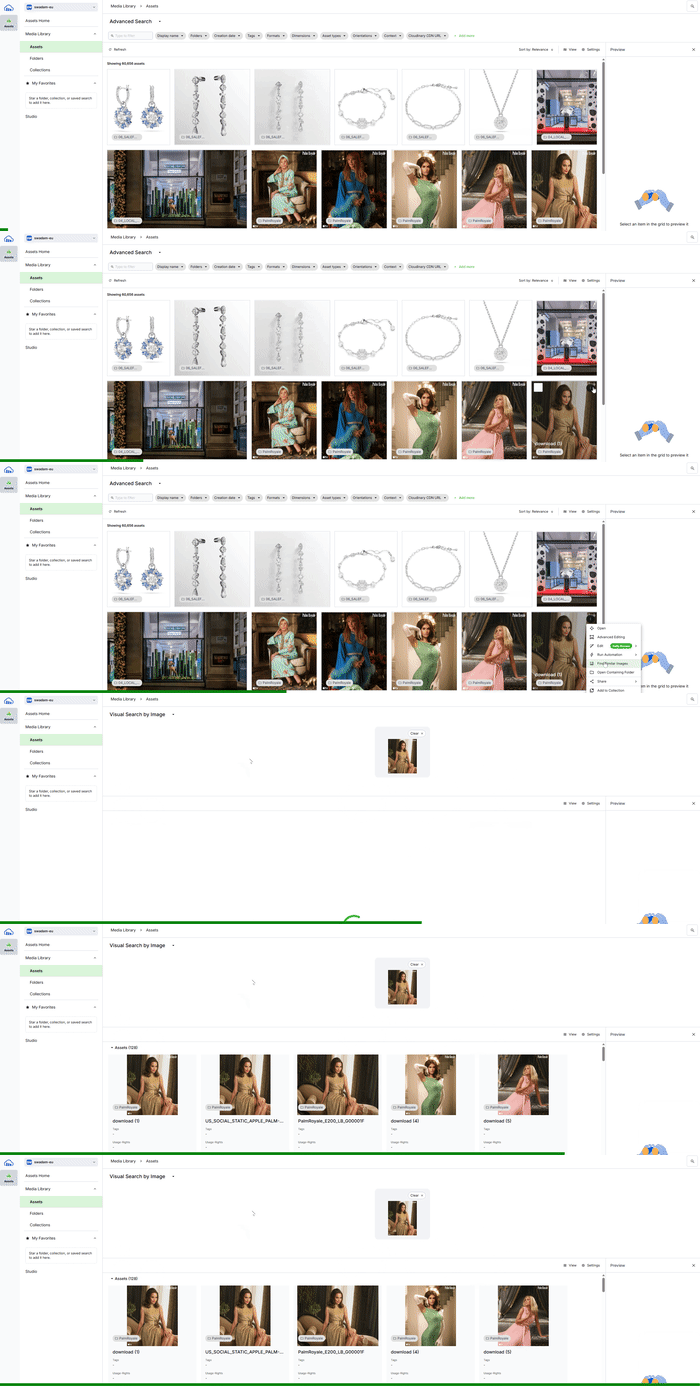
  1. 1 Open the Media Library and locate the asset you need in any view (Cards, List or Mosaic).
  2. 2 Open the asset’s menu (three dots or right‑click) and choose Download to save the original file to your computer.

Download multiple assets or folders

  1. 1 Select several assets or an entire folder/collection from the Media Library.
  2. 2 Click the Download button in the top toolbar to generate a ZIP that contains all selected items, then confirm the browser download.

Download limits

  • Each ZIP can include up to 1000 assets and must stay under the larger of 500 MB.

How to Share Assets

Cloudinary offers professional ways to share content with external partners or internal teams using Collections. You can create manually curated albums or dynamic sets that update automatically.

Sharing Standard Collections

Collections allow you to create a "playlist" of assets without moving them from their original folders. You can share this collection internally and externally. Users will be able to download assets.

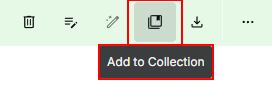
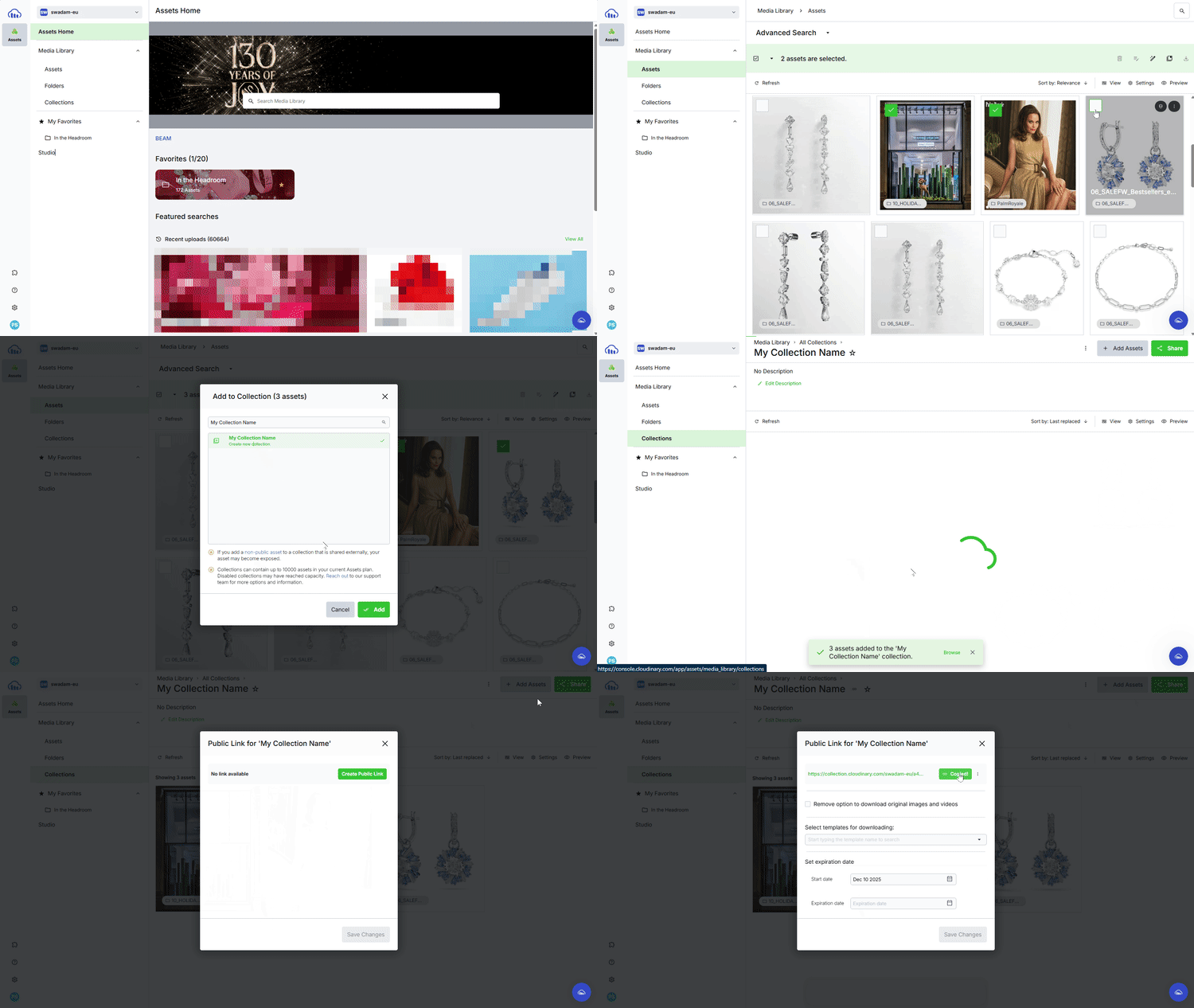
  1. 1 Select the assets you want to share. Click the Add to Collection icon in the action bar.
  2. 2 Create a new collection (e.g., "Summer Campaign Press Kit") or add to an existing one.
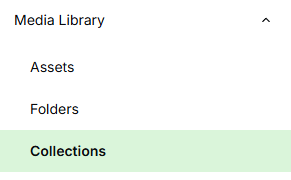
  3. 3 Open the Collections view from the left sidebar and select your collection.
  4. 4 Right click on the collection you want to share:
    • Share Public Link: Generate a public link to send to internal users, external agencies and partners.
    • Invite: Share internally with other logged-in users.
Click image to enlarge

Method 2: Dynamic Collections (Automated)

Dynamic collections are smart folders that organize themselves. You set simple rules (like "show all assets tagged 'summer'"), and matching files automatically appear and new uploads that fit the rules are added instantly, keeping everything current without manual adding.

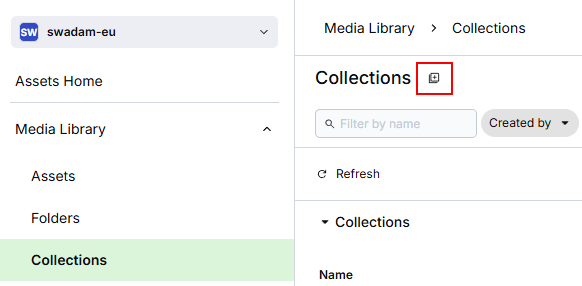
  1. 1 Open the Collections panel in the left sidebar.
  2. 2 Click the Create new collection icon
  3. 3 Select Dynamic Collection from the options.
  4. 4 Enter a Name for your collection.
  5. 5 Define your filters. Use the buttons to select specific Folders, Tags, or Asset types.
    Use the + Add more button to access the full list of filters.
  6. 6 Click Save. The collection will populate instantly with all matching assets.
  7. 7 Right click the collection and select  Share Public Link to generate a public link to send to internal users, external agencies and partners.

Pro Tip

  • Always use Collections (Standard or Dynamic) when sharing with external partners. It keeps your internal folder structure private and makes it easier for others to download files.
Editor Features
The following sections require editor permissions
For Editors Only
Requires Edit Permissions

How to Upload Assets

Editor permissions required

Upload media easily with the Cloudinary Assets Media Library. Drag and drop files, use the Media Library Upload widget, or paste directly from your clipboard — all from your browser. Uploads are saved to the currently selected folder and processed according to your default Media Library upload preset settings

Before you start: Choose the right folder

Before uploading, make sure you’ve chosen the correct folder in the Media Library
All uploads are saved to the folder that is currently active.

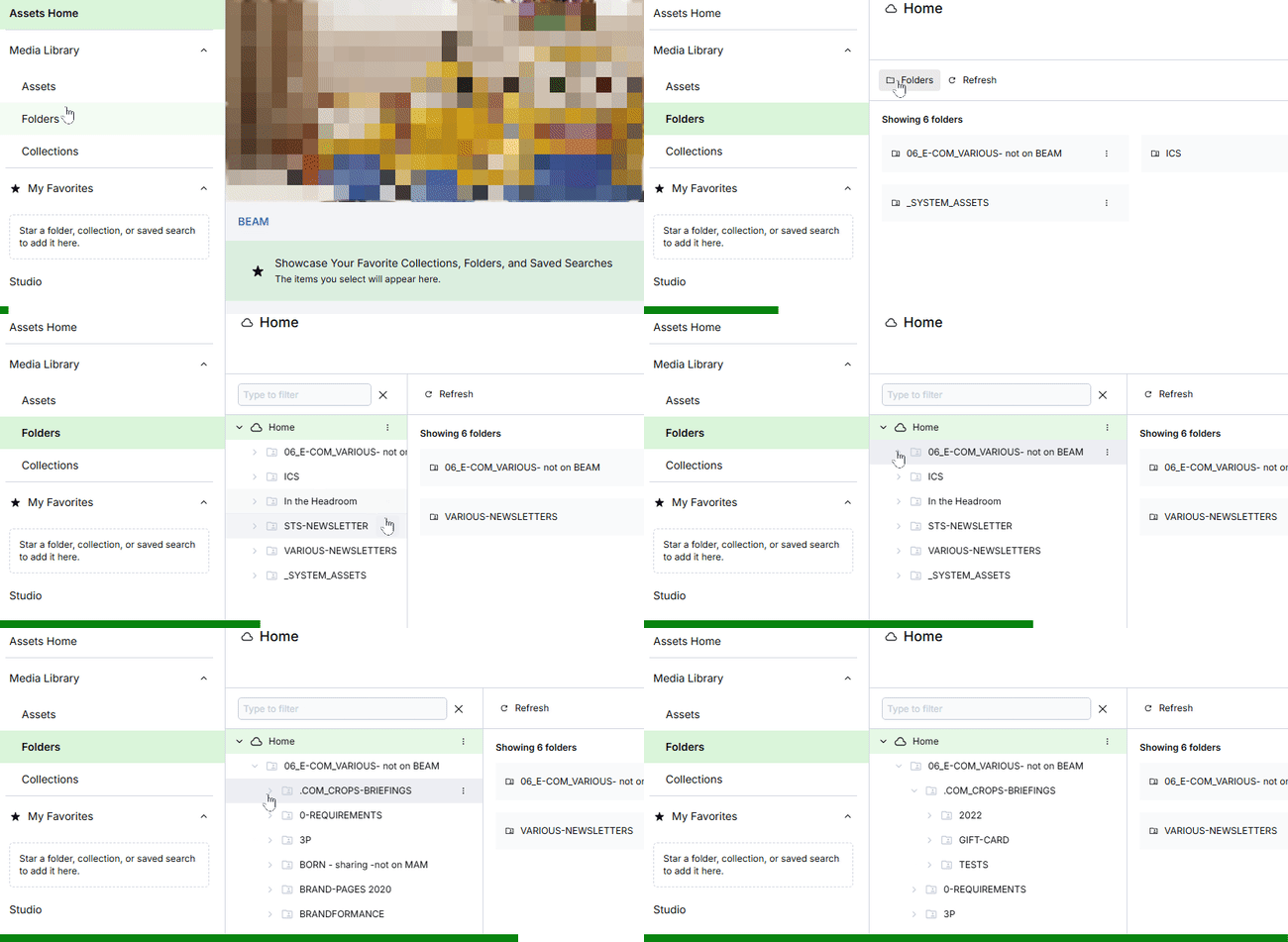
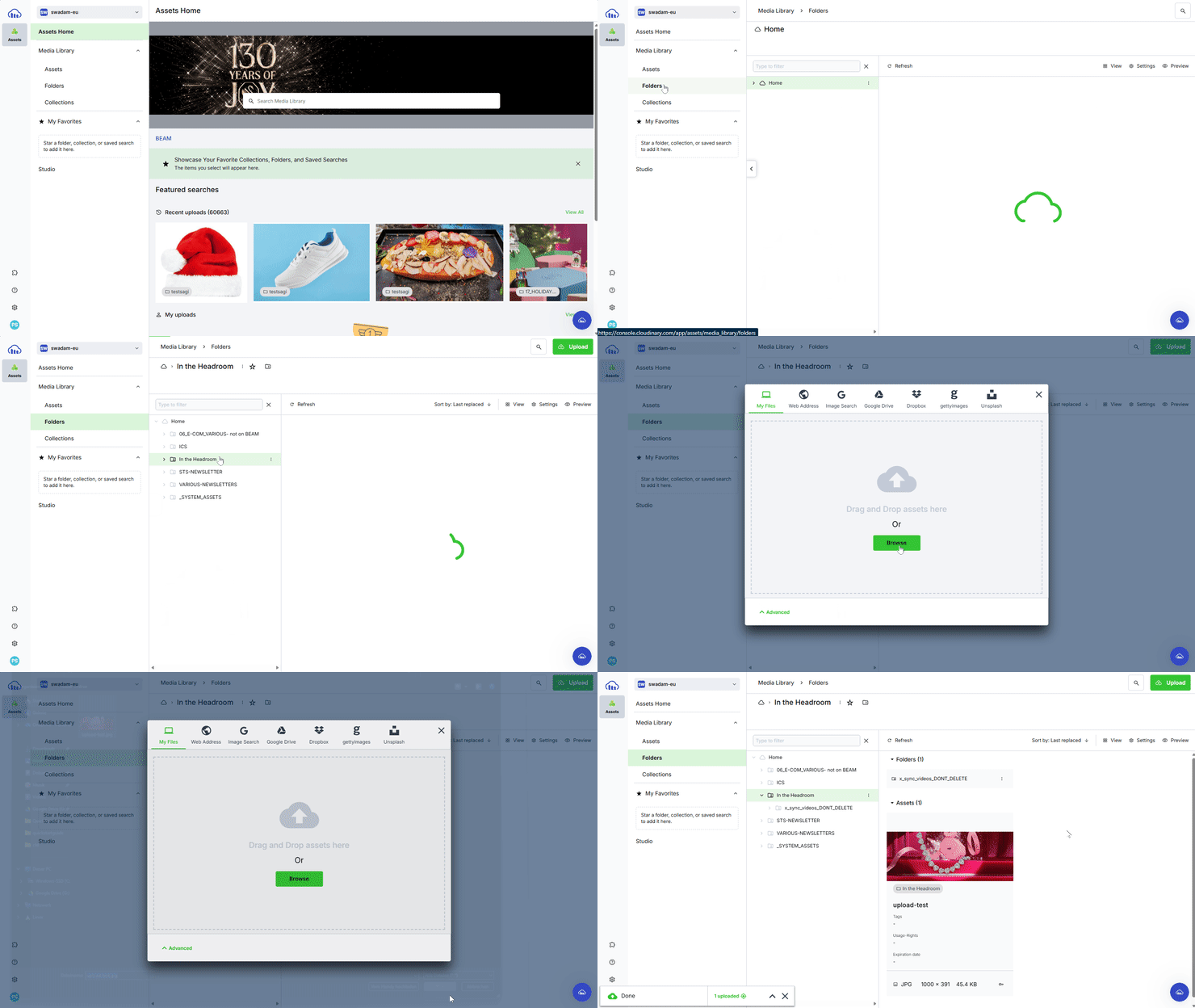
  1. 1 In the Media Library, switch to the Folders view and navigate to the folder where the assets should live. Uploads always go to the currently active folder, not to search results.
  2. 2 When naming folders, use only: letters, numbers, hyphens (-), or underscores (_). Don't use: special characters like @, &, !, etc.

Upload files: Drag and Drop

  1. With the target folder open, drag files or folders from your file system into the Media Library window.

Did you know? How to upload folders

  • When dragging folders, the full folder tree (excluding empty folders) is recreated under the active folder, and files are uploaded

Upload Files: Use the Media Library Upload widget

  1. 1 On the top right of the page click the Upload button to open the Media Library Upload widget. From here you can upload from your local files or from remote sources such as URLs (Web Address), Google Image Search, Google Drive, Dropbox, Getty Images or Unsplash.
  2. 2 Before selecting files, open Advanced options to add tags that apply to all files you upload in that session.
  3. 3 Select one or more files or drag them into the widget. The upload will then start automatically.

Click image to enlarge

Upload from the clipboard

  1. 1 Copy an image or file to your clipboard from a browser, document, or another application.
  2. 2 Navigate to the desired destination folder in the Media Library.
  3. 3 Paste (for example, using Ctrl/Cmd + V). The pasted asset is uploaded using the same defaults as drag‑and‑drop uploads.

Good to know: Upload presets and permissions

  • Upload behavior (naming, tags, auto‑tagging add‑ons, moderation, folder prefixing, overwrite policy) is driven by Media Library upload preset defaults. These are managed by the platform administrators only.
  • Editors can upload to any folder where they have at least Can contribute permissions.
  • Warning: If you upload a file with the same name as an existing file, Cloudinary will ask if you want to replace the old file. Choose carefully as the old file might be used in other projects!
For Editors Only
Requires Edit Permissions

How to Add Tags

Editor permissions required

Tags are keyword labels that you attach to assets to classify them. They are the most flexible way to organize your library because you can add up to 1000 tags to a single file, allowing it to appear in multiple search results without needing to duplicate the file in different folders.

Improve Searchability

You can find files faster by searching their tags. Searching for "summer" finds all assets tagged with "summer" regardless of their folder.

Group Campaigns

Use tags to group assets for specific projects (e.g., "mothers-day-2026", "cny2026") without moving them from their original location.

Method 1: Using the Details Panel (Easiest)

This is the quickest way to add tags to a single asset while viewing it.

  1. 1 Single click on a file to select it.
  2. 2 On the right-hand side of the screen, ensure the Preview Panel is visible.
    Click image to enlarge
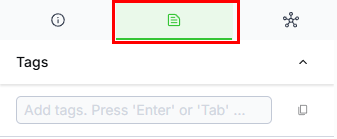
  3. 3 Select the Metadata tab in the Preview Panel.
  4. 4 Find the Tags section in the panel on the right. Type your new tag and press Enter.
    (The system will auto-suggest existing tags to help prevent duplicates)
  5. 5 Click Save at the bottom right of the panel to apply your changes.

Method 2: Using the Action Bar (Single or Bulk)

Use this method when you want to tag multiple assets at once, or if you prefer using the top toolbar.

  1. 1 Select one or more assets in the Media Library.
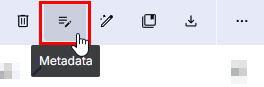
  2. 2 In the top action bar, click the Edit Metadata icon (it looks like a list with a pencil).
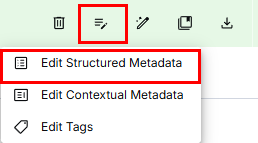
  3. 3 Select Edit Tags from the dropdown menu.
  4. 4 Enter the tags you wish to add to all selected assets and click "Update" to confirm the changes.
Tagging Best Practices
Recommended formats:
campaign-2026 seasonal_2026 MothersDay2026
  • Be Consistent: Decide on singular vs. plural (e.g., always use "shoe", not "shoes").
  • Use Lowercase: It is easier to search and maintain tags if they are all lowercase.
  • Reuse Tags: Always look at the autocomplete suggestions to avoid creating near-duplicates.
  • No Spaces: Spaces act as separators and will split your text into multiple tags. Use underscores (e.g., summer_collection) or hyphens instead.
For Editors Only
Requires Edit Permissions

How to Edit Structured Metadata

Editor permissions required

About Structured Metadata

Structured Metadata fields are custom fields defined specifically for our organization. Unlike tags, these fields have specific types (dates, lists, text) and validation rules.

Method 1: Single Asset Edit

  1. 1 Select an asset to view its details in the right-hand Preview Panel.
  2. 2 Click the Metadata tab (next to Summary).
  3. 3 Scroll to the Structured Metadata section.
  4. 4 Click inside any editable field to update it.
    • • For Lists: Select option(s) from the dropdown.
    • • For Dates: Use the calendar picker.
    • • For Text: Type your value.
  5. 5 Click Save at the bottom right of the panel.

Method 2: Bulk Edit (Multiple Assets)

Use this to apply the same expiration date, usage right, or author to many files at once.

  1. 1 Select multiple assets in the Media Library.
  2. 2 In the top action bar, click the Edit Metadata icon (list with pencil) and choose Edit Structured Metadata.
  3. 3 A modal will appear listing your metadata fields. Enter values only for the fields you want to change.
    (Leaving a field empty in this view will keep the original values for the assets).
  4. 4 Click Update to update all selected assets.

Why can't I edit some fields?

You may notice fields like SKU, Product Name, Description, or CDN URLs are grayed out or locked.

  • These are Read-only fields. They are populated automatically by an external system (like a PIM or ERP) to ensure data integrity. You cannot edit these manually in Cloudinary.

Need Help?

If you have questions about permissions, access, or technical issues, we have several ways to help you.

Instant Answers: Cloudinary AI Chatbot

The quickest way to get answers about platform features is the built-in AI assistant.

  1. 1 Look for the Blue Cloud Icon in the bottom-right corner of the screen.
  2. 2 Click the icon, then select the "Ask a question" button in the pop-up menu.
  3. 3 Type your question in the chat window to get immediate help from the Cloudinary AI Agent.

Support & Technical Issues

If you need assistance, please submit a ticket to the Global Service Desk and ensure it is assigned to the DIG.CBIT.DMIT group.

Accidentally deleted a file?

Don't panic! Assets are automatically stored in a backup, available to administrators. They remain there for 30 days before being permanently removed. Your administrators can restore them at any time during this period. Please submit a ticket to Global Service desk and have it assigned to the group DIG.CBIT.DMIT