External Partner Guidelines

Welcome to the Swarovski Digital Asset Management portal. This guide outlines the standard procedures for external agencies to authenticate, name, and upload deliverables efficiently.

1. Security & System Access

To maintain strict IT security standards, external partners must follow a specific 2-Factor Authentication (2FA) process. You must complete this setup to access Swarovski DAM.

You may see two different onboarding layouts. Instructions for both layouts are shown below.

LAYOUT 1 - Mandatory 2FA Setup when initially logged in to Cloudinary

If you have followed the login instructions from the welcome email from Cloudinary and are logged into Cloudinary, follow these steps:
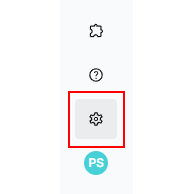
1 Click Settings icon
Click Settings

In the lower left corner, click the settings icon.

2 Set Up 2FA
Set Up 2FA
Click image to enlarge

Click on "Two-Factor Authentication" on top of the screen. Next click on the blue "Set Up Two-Factor Authentication" button.

3 Enter verification code
Enter verification code
Click image to enlarge

Check your email and enter the 5-digit code sent by Cloudinary.

 

4 Download App
Download Authenticator App
Click image to enlarge

Install one of the supported authenticator apps:
Google Authenticator
Microsoft Authenticator
5 Open App
Open App
Click image to enlarge

Open the app. In either of the apps click the "PLUS" symbol and select "Scan QR Code".
 

6 Scan QR Code
Scan QR Code
Click image to enlarge

Scan the QR Code on screen.

7 Get Token
Get Token
Click image to enlarge

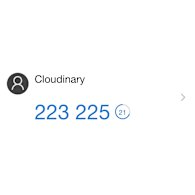
Your phone will display a 6-digit code (e.g., 123 456).

8 Enter Token
Enter Token
Click image to enlarge

Enter the code. Be mindful of time as the code is only active for 30 seconds!

9 Finalize Setup
Finalize Setup
Click image to enlarge

Click Authenticate to finalize the 2FA setup.

LAYOUT 2 - Mandatory 2FA Setup when no longer logged in to Cloudinary and 2FA setup has not been done initially

If you haven't set up the 2 Factor Authentication when you were first logged in Cloudinary, you must complete the 2FA before being able to access Swarovski DAM - Cloudinary Assets again. You will be forwarded to this screen.
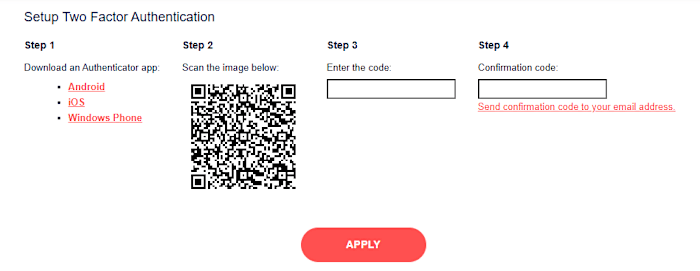

FOLLOW THE INSTRUCTIONS BELOW CLOSELY IN ORDER FOR IT TO WORK!

1 Download App
Download Authenticator App
Click image to enlarge

Install one of the supported authenticator apps:

Google Authenticator
Microsoft Authenticator
2 Open App
Open App
Click image to enlarge

Open the app. In either of the apps click the "PLUS" symbol and select "Scan QR Code".
 

3 Scan the QR code
Scan the QR code
Click image to enlarge

Your phone will display a 6-digit code (e.g., 123 456).
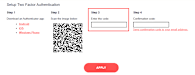
4 Enter Code
Enter Code
Click image to enlarge

Enter the code from the Authenticator App.

DON'T PRESS ANY BUTTON YET!
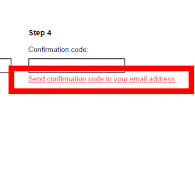
5 Cloudinary Confirmation
Cloudinary Confirmation
Click image to enlarge

Retrieve the Cloudinary access cide and click "Send confirmation code to your email address".

Don't click any other button yet!
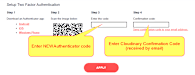
6 FINAL STEPS
FINAL STEPS
Click image to enlarge

IMPORTANT! FOLLOW THESE FINAL STEPS EXACLTY AS DESCRIBED!

Check the image for details

1. Enter the Cloudinary Confirmation Code received by email into Step 4

2. Open Authenticator App

3. Enter a NEW code from Authenticator App. Be mindful of time as the code is only valid for 30 seconds!

4. Click Apply to finalize set-up
2. File Naming Conventions

Generic filenames make assets impossible to find later. Please strictly follow these formatting rules to ensure accessibility and searchability.

  • Be Descriptive: Include project name/campaign name, season, type, version etc.
  • Use Separators: Use underscores (_) or hyphens (-). Never use spaces.
  • No Special Characters: Do NOT use characters like &, :, ?, %, or #.
    These can break URLs and cause accessibility issues for screen readers.

Examples

Correct
SWA_2026_VD_MOB_GUIDELINES_GLOBAL.pdf
Correct
2026_T1_SWA_BRAND_VD_STILL_LIFE_2_72DPI_sRGB.jpg
Incorrect
2026_SWA T2 MD_UK&ME GIFTING_STILL LIFE 3_300DPI_sRGB.jpg
Contains '&' symbol
Incorrect
2026-SWA T2 MD.jpg
Generic, contains spaces
3. How to Upload Assets
Step-by-Step

How to Upload Assets

Contributor permissions required

Upload media easily with the Cloudinary Assets Media Library. Drag and drop files, use the Media Library Upload widget, or paste directly from your clipboard — all from your browser. Uploads are saved to the currently selected folder.

IMPORTANT FIRST STEP: CHOOSE THE DESTINATION FOLDER

Before uploading, make sure you’ve chosen the correct folder in the Media Library
All uploads are saved to the folder that is currently active.

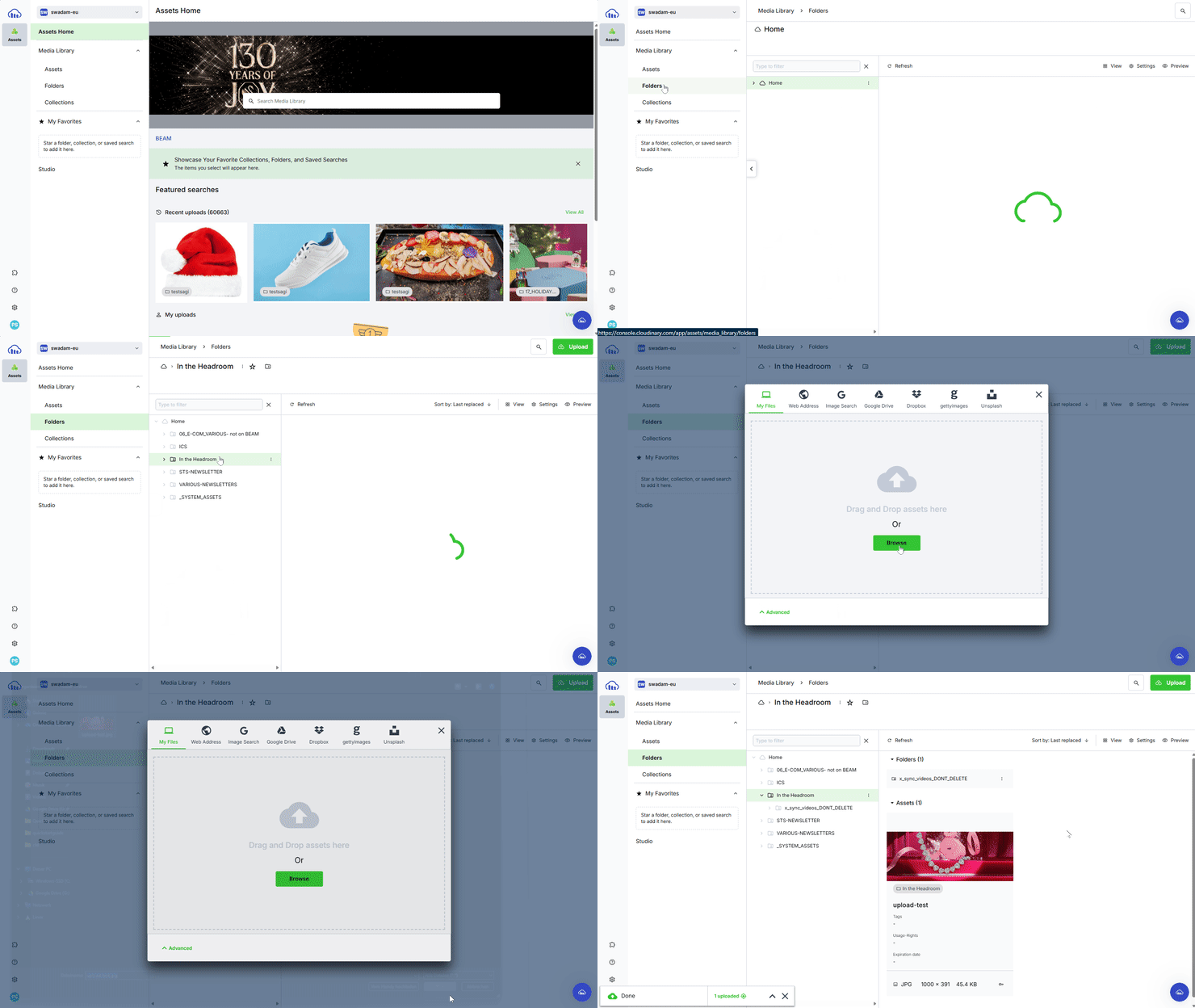
  1. 1 In the Media Library, switch to the Folders view and navigate to the folder where the assets should live. Uploads always go to the currently active folder, not to search results.
  2. 2 Avoid special characters in folder names when dragging folders; use only letters, numbers, hyphens, or underscores.

Upload files: Drag and Drop

  1. With the target folder open, drag files or folders from your file system into the Media Library window.

Good to know: uploading folder structures

  • When dragging folders, the full folder tree (excluding empty folders) is recreated under the active folder, and files are uploaded.

Upload Files: Use the Media Library Upload widget

  1. 1 On the top right of the page click the Upload button to open the Media Library Upload widget.
  2. 2 Before selecting files, open the Advanced options in the widget add shared tags. These options apply to all files you select in that session.
  3. 3 Select one or more files or drag them into the widget. The upload will then start automatically.

Upload Widget Demo
Click image to enlarge

Upload from the clipboard

  1. 1 Copy an image or file to your clipboard from a browser, document, or another application.
  2. 2 Navigate to the desired destination folder in the Media Library.
  3. 3 Paste (for example, using Ctrl/Cmd + V). The pasted asset is uploaded using the same defaults as drag‑and‑drop uploads.

Good to know: Upload behavior

  • Upload behavior (naming, tags, auto‑tagging) is driven by Media Library upload preset defaults set by the platform administrators.
  • When you reuse an existing filename (public ID), Cloudinary will prompt you if you want to overwrite the existing asset.